Most website owners know how many people visit their site each month. Very few actually understand what visitors do once they arrive on a page.
Microsoft Clarity changes that completely. This free analytics tool records real user sessions and creates visual heatmaps so you can see where people click, scroll and get stuck.
In this article, we’ll break down how Microsoft Clarity works, how to set it up on your website (regardless of CMS or website builder) and provide insights on how to use it to improve website performance.
What Is Microsoft Clarity?
Microsoft Clarity is a free behavioural analytics tool designed to show how visitors interact with your website or app. Launched in 2020, it captures anonymous user data to create visual insights including session recordings, click heatmaps and scroll heatmaps.
Interestingly, the client-side analytics and session-recording code that powers Microsoft Clarity is open source, while the backend dashboard and hosted cloud service remain proprietary.
While tools like Google Analytics 4 (GA4) track overall numbers such as pageviews and bounce rates, Clarity shows the visual story behind those metrics.
It helps you move beyond raw performance data so you can see actual user behaviour on screen.
Over two million websites globally use Microsoft Clarity in 2026. Unlike other platforms that restrict session recordings on free plans, Clarity offers unlimited session recordings with no traffic caps.
Microsoft Clarity also works seamlessly across WordPress, Shopify, WooCommerce and custom platforms.
At White Peak Digital, we routinely use heatmaps after launching a new web design or starting a conversion rate optimisation project to validate layout decisions and prioritise user flow.

How Microsoft Clarity Works
The key features you’ll use regularly in Microsoft Clarity are heatmaps, session recordings, dashboard insights and AI-powered summaries.
At a technical level, the Microsoft Clarity tracking code runs asynchronously in the browser, capturing user interactions (clicks, scrolls, mouse movement, navigation) and sending them securely to Microsoft’s servers.
Data appears in the Microsoft Clarity dashboard in near real-time, with click heatmaps updating within roughly 30 minutes.
Clarity also keeps data unsampled, which is important for small business websites with lower traffic. You get reliable behavioural data from every eligible session rather than a statistical sample.
Insight: Unsampled data means Clarity records and analyses 100% of user sessions without cutting corners by estimating statistics from a fraction of visitors. This is vital for low-traffic sites because sampling would otherwise hide rare user actions and leave small business owners with blind spots.
Clarity captures 30 days of complete user activity data, with a smaller subset retained for up to nine months.
Microsoft Clarity connects every feature together. If you notice an issue on the dashboard, you can click directly into the relevant user recordings or heatmaps to investigate further.
Built-in AI automatically highlights drop-offs, confusing layout elements and device friction points to save manual review time.
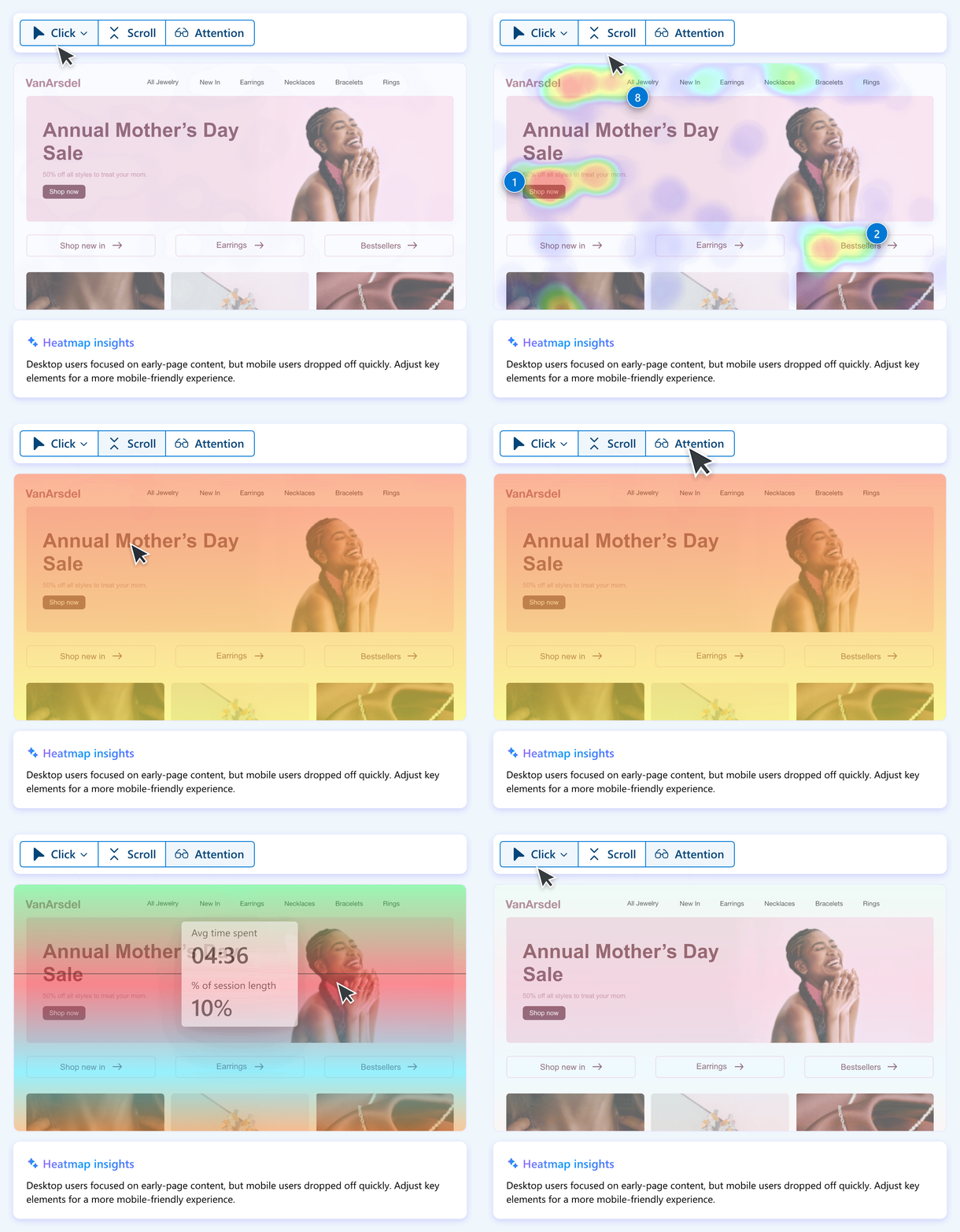
Heatmaps for Clicks & Scrolling
Heatmaps provide colour-coded overlays that show where users click, tap and scroll on every page.
The system generates separate views for desktop, tablet and mobile devices automatically.
Click heatmaps highlight popular navigation choices, ignored call-to-action buttons and elements that look clickable but are not.
Scroll heatmaps show how far visitors travel down a page, helping you spot critical content that sits below average drop-off points.
You can filter heatmap data by location, device or campaign tags. This makes it easy to review how specific audience groups engage with dedicated landing pages after clicking an advertisement.
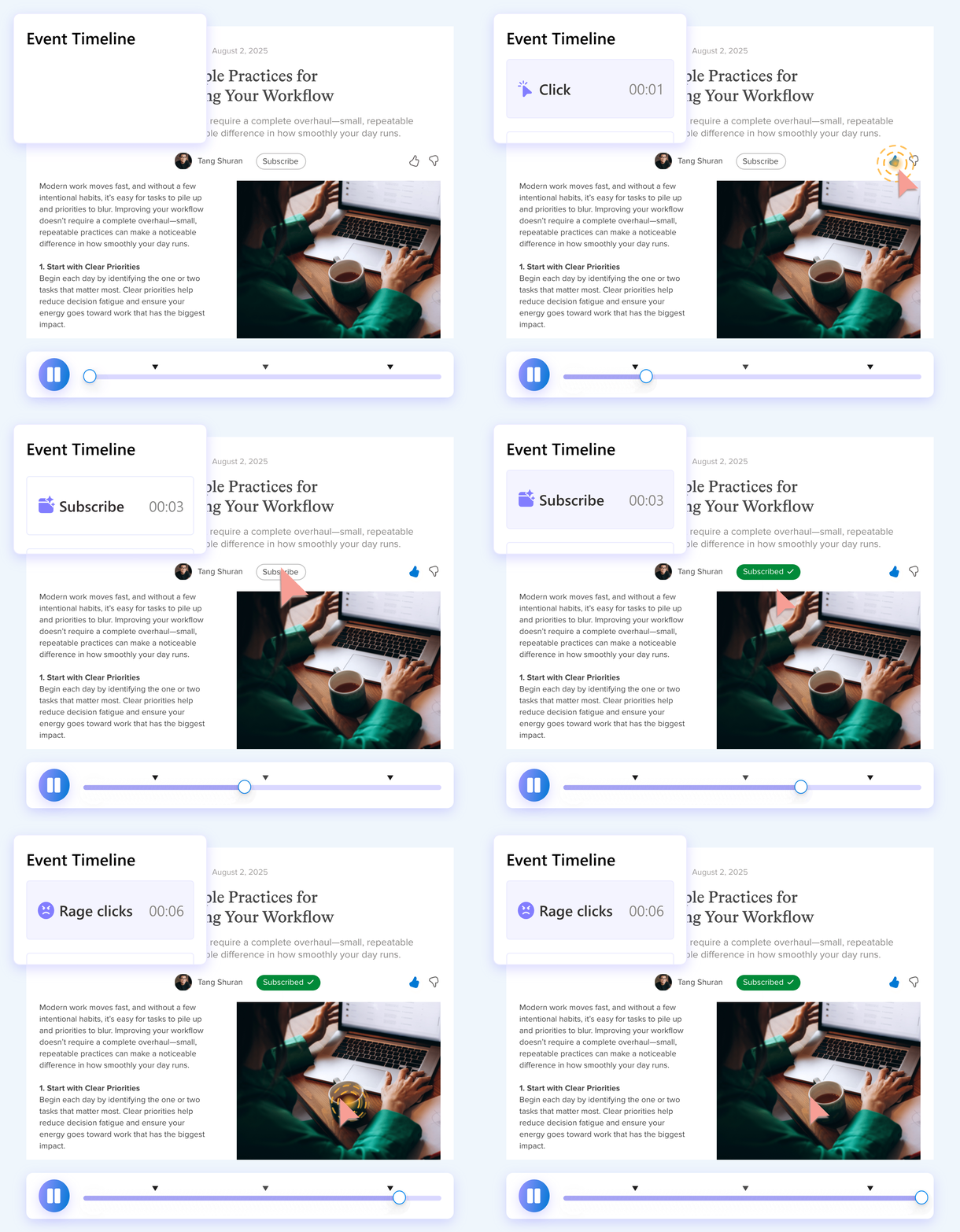
Session Recordings & User Friction
Session recordings display anonymised replays of individual visitor sessions.
You can watch exact mouse movements, button clicks, form fields and navigation paths across your site.
The platform highlights frustration signals like rage clicks (user clicking repeatedly on an unresponsive element) and dead clicks (clicks that produce no result). These filters help you fix usability bugs rapidly.
Watching short replays helps you spot where users hesitate before filling out a contact form or abandoning a shopping cart. It provides clear, visual insights that numbers alone cannot deliver.
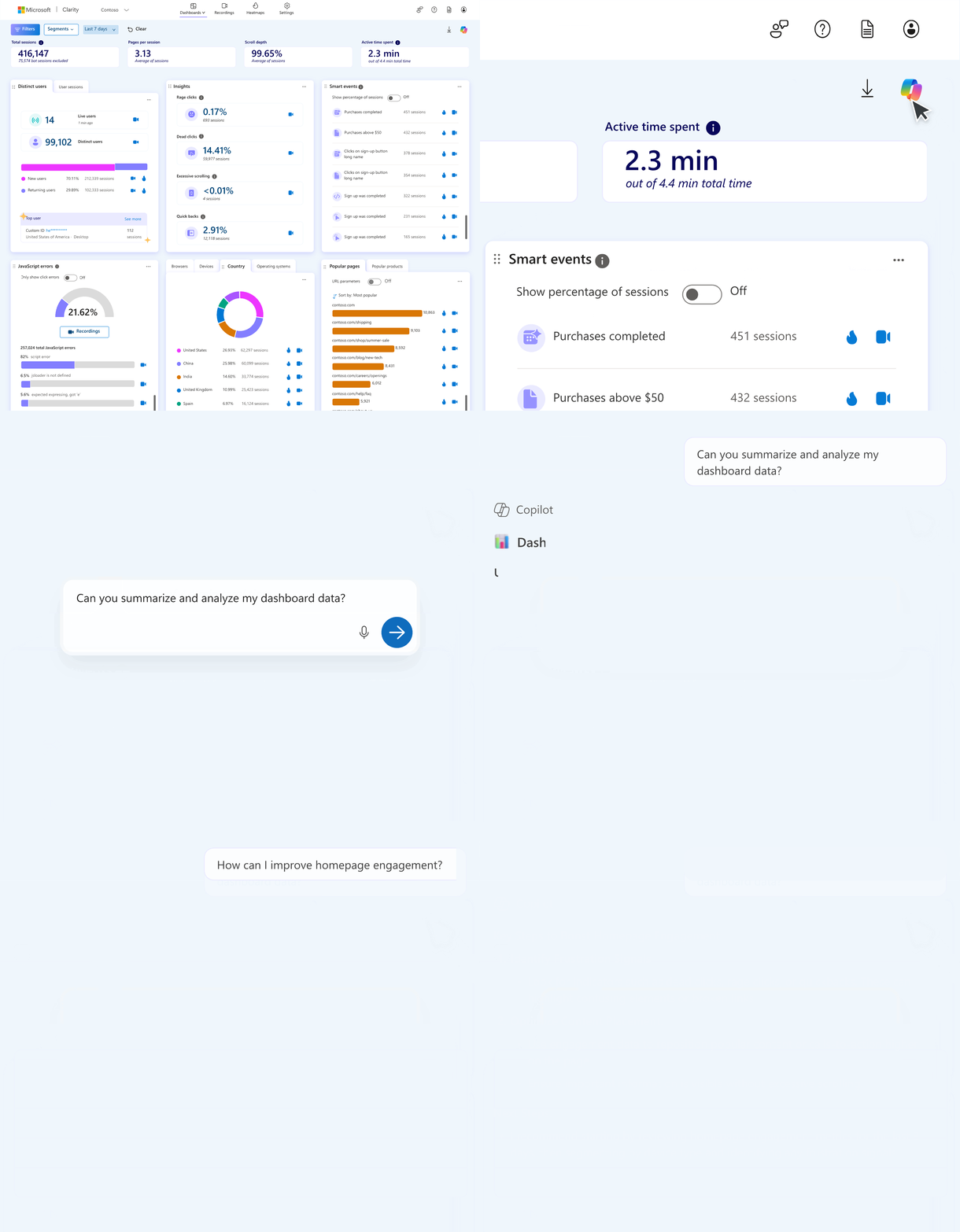
Dashboards & Custom Events
The standard Microsoft Clarity dashboard presents high-level engagement metrics alongside error logs, device breakdowns and top pages with user friction.
Setting up custom events for your site allows you to track specific actions such as form submissions, video plays or cart additions that are important to you.
You can filter recordings by these events to understand why users complete or abandon key tasks.
How to Install Microsoft Clarity On Your Website
Microsoft Clarity is free to install and use. Every project generates a unique tracking code in the Microsoft Clarity dashboard that you simply need to add to your website.
Option 1: Google Tag Manager
If you’re already using Google Tag Manager and Google Analytics 4 on your website, follow these steps for the easiest installation:
- Open your Google Tag Manager account and create a new “Custom HTML” tag
- Paste the Microsoft Clarity tracking code into this new tag
- Set it to fire on all pages
- Publish the container
- Confirm data is appearing on the Microsoft Clarity dashboard
Option 2: Manual Installation
For WordPress, add the Microsoft Clarity tracking code to your theme, before the closing </head> tag, via a child theme or code snippet plugin.
For Shopify, add the tracking code to your store header in the theme.liquid file.
For all other platforms, look for an advanced option to add or inject code into your website header and paste it there, this is how it’s done on platforms like Squarespace and BigCommerce for example.
After publishing this code, verify the installation was successful by checking for live data in Microsoft Clarity within the first hour.
If nothing appears, use your browser console or tag assistant tools to confirm no conflicting scripts are blocking the Microsoft Clarity tracking code.
Once verified, you’ll see recordings and heatmap data begin populating in your dashboard almost immediately.


Microsoft Clarity vs Google Analytics 4
These two tools are complementary, not competing.
Google Analytics provides quantitative data like traffic rates, conversions, funnels, revenue and attribution modelling.
Microsoft Clarity handles the qualitative side, helping you see and understand why your website funnels leak and where users get stuck.
Clarity offers a native integration with Google Analytics too, letting you click from GA4 events or segments directly into corresponding Microsoft Clarity sessions and heatmaps.
This can be helpful when you identify low-converting pages in GA4 and then use Microsoft Clarity to watch recorded sessions that visit these pages to see why users are not converting.
You might find an issue with your call-to-actions for example, you can then adjust their design and measure the results with these tools again to confirm the improvement.
This loop of quantitative metrics paired with qualitative recordings is what makes informed decisions possible and helps increase website conversions reliably.
In a standard analytics tool stack, Microsoft Clarity sits alongside Google Analytics for metrics, Google Tag Manager for deployment and potentially additional tools for A/B testing.
Microsoft Clarity Privacy & Compliance
Microsoft Clarity is fully GDPR and CCPA compliant. It emphasises data privacy by anonymising IPs, avoiding collection of personally identifiable information by default and offering masking of sensitive areas.
User privacy is handled through built-in controls and support for consent management platforms that you can configure within your Microsoft Clarity account.
Business owners should still update their website legal policies to disclose the use of Microsoft Clarity. For EU/UK visitors, valid consent signals are required for full functionality.
Frequently Asked Questions
Is Microsoft Clarity really free?
Yes. There is no free plan with upgrade pressure, it’s simply free. No traffic, recording or heatmap limits. Microsoft monetises through its broader ecosystem, not through Clarity subscriptions.
Will Microsoft Clarity slow my website down?
The script is lightweight and loaded asynchronously. In our experience, the performance impact is negligible when implemented correctly. It won’t meaningfully affect page load times or Core Web Vitals.
Can I use Microsoft Clarity with mobile apps?
Clarity is built for websites and web apps. Native iOS and Android mobile apps require different analytics SDKs. However, all mobile web traffic is fully supported with the same recordings, heatmaps and filters available as desktop.
How long does it take to see useful data in Microsoft Clarity?
Meaningful patterns usually emerge within a few days for moderate-traffic sites. Lower-traffic sites may need a week or two. Clarity provides unlimited session recordings for free from the moment the code is live, so every visit counts from day one.
Do I need a website developer to install Microsoft Clarity?
Many WordPress or Shopify site owners can add the code themselves or via Google Tag Manager. That said, if you’d like help integrating Clarity into a broader CRO and analytics strategy, agencies like White Peak Digital handle setup as part of wider optimisation work, just get in touch and we’ll walk you through it.