If you have ever noticed a small blue checkmark icon next to a sender’s name in your Gmail inbox, you have seen Google’s email identity verification in action.
Unlike social media platforms, this badge is not about popularity or a paid subscription.
It is a security-driven checkmark confirming that the email sender has passed strict authentication protocols tied to their domain and brand identity.
To obtain a verified blue checkmark in Gmail, organisations must follow a multi-step process involving email authentication standards, a trademarked logo and a digital certificate issued by an authorised provider.
This step-by-step guide walks you through exactly how to get this blue checkmark in Gmail, Yahoo & Apple Mail and everything that is required.

Key Takeaways
- Google has displayed the blue checkmark in Gmail since May 2023, and it works in Gmail, Apple Mail and Yahoo Mail but not in Outlook or other Microsoft mail clients as of 2026.
- The blue email checkmark is only available to authenticated email senders using SPF, DKIM, DMARC and BIMI, backed by a Verified Mark Certificate (VMC) for their trademarked logo.
- Brands need a custom email domain, strong email security, a trademarked logo in SVG format, a BIMI record and an active VMC to earn the blue checkmark in Gmail.
- The Gmail blue checkmark matters because it boosts brand trust, protects against impersonation and phishing attacks and can improve email open rates and conversions from email marketing.
- This article is a neutral, how-to guide without bias or affiliate links. We have implemented BIMI and VMC on our own domain and are happy to support our clients implementing this in a website design or conversion optimisation project.
What Is The Blue Verified Checkmark in Gmail?
The Gmail blue checkmark icon is a visual verification badge that appears next to a sender’s name in the Gmail inbox and message view.
When the blue checkmark appears, it tells the recipient that the email sender has passed Google’s strict identity verification checks, including domain based message authentication, cryptographic signing and certificate-backed logo verification through the BIMI protocol.
The badge typically displays alongside the brand logo loaded via Brand Indicators for Message Identification (BIMI).
It is tied to the sending email domain, not to an individual Gmail account. A message from “info@yourbrand.com” can show the blue checkmark but a personal @gmail.com address cannot.
This is fundamentally different from blue checkmarks on social media platforms like Instagram, Facebook or X (formerly Twitter).
Those verification systems often mix identity verification with notability, public interest status or subscription based verification.
Gmail’s blue verified checkmark is purely about email security and confirming the sender’s identity through technical authentication standards.
One important note: Microsoft is a major holdout and does not render BIMI logos or blue checkmarks in Outlook or Exchange.
Recipients using Microsoft mail clients will not see the visual verification badge, even if your BIMI setup is perfect.

Why the Gmail Blue Checkmark Matters
The blue checkmark helps users identify legitimate email senders at a glance.
With phishing attacks rising by 13.8% in early 2026, that instant visual confirmation of a verified brand identity can be the difference between a recipient opening your email or reporting it as phishing.
Tactics like fake invoices and CEO impersonation scams exploit the fact that most emails arrive without any visible proof of who actually sent them.
A verified logo alongside a blue check directly counters these threats by tying your corporate domain and logo to strict cryptographic checks.
Beyond security, the blue checkmark enhances email deliverability and reduces spam classification risk. When Gmail users see a verified sender with a recognisable brand logo, they are more likely to open and engage.
This matters for email marketing performance: higher open rates lead to more clicks, sign-ups and sales.
Given that more than half of Australians suspect their data is being misused, visible trust signals help overcome scepticism.
For brands investing in professional website design, eCommerce development and conversion optimisation, the Gmail blue checkmark is an important piece of the trust and UX puzzle.
Your website might convert well, but if the emails driving traffic to it look suspicious, you lose the opportunity before visitors ever arrive.

How Gmail’s Blue Checkmark Works
Four layers of email authentication work together to enable the blue checkmark. Here is what each one does:
Sender Policy Framework (SPF)
Sender Policy Framework is a DNS record that includes the IP address of every email server that is authorised to send emails with your domain.
When Gmail receives a message claiming to come from your domain, it checks the sending IP against your SPF record.
SPF verifies that the sending mail server is authorised and blocks messages from rogue servers.
DomainKeys Identified Mail (DKIM)
DomainKeys Identified Mail adds a digital signature to ensure email integrity during transit.
Your sending server signs outbound messages with a private key and the recipients email inbox fetches the matching public key from your DNS to verify that nothing was altered during transmission between the two servers.
Domain Based Message Authentication, Reporting & Conformance (DMARC)
DMARC sits on top of SPF and DKIM. It tells receivers like Gmail what to do when checks fail, using policies of “none”, “quarantine” or “reject”.
DMARC must be configured with a policy of quarantine or reject for BIMI eligibility.
DMARC helps prevent email spoofing and phishing attacks by enforcing alignment between the “From” domain and the authenticated domain.
Brand Indicators for Message Identification (BIMI)
BIMI is the layer that enables senders to display their brand logo in recipients’ inboxes.
BIMI requires a Verified Mark Certificate (VMC) for a logo to display in Gmail.
Gmail shows the brand logo as the sender avatar and activates the blue checkmark when DMARC is enforced, a valid BIMI record is published and a VMC is in place.
Organisations need email authentication standards such as SPF, DKIM and DMARC to qualify for a blue checkmark, and BIMI ties it all together.

Prerequisites for a Blue Checkmark in Gmail
Make sure you meet the following eligibility criteria before purchasing a VMC or touching DNS:
- Custom domain: You must send emails from your own domain (e.g. info@yourbrand.com), not a free @gmail.com address. If you do not own one yet, learn how to buy a domain name for your business first and set up a custom email address in Google Workspace or Microsoft 365. Note that while you can send verified emails from either platform, only recipient inboxes that support email verification badges will display the checkmark.
- Consistent sending infrastructure: Map every platform that sends email on your behalf: Google Workspace, WordPress, Shopify, Mailchimp, Klaviyo, CRM tools, transactional systems. Every source needs correct authentication.
- Working SPF and DKIM: All legitimate email servers must already pass SPF and DKIM under your domain before you tighten DMARC.
- DMARC readiness: You should set up a basic DMARC policy with monitoring in place and be reviewing aggregate reports before progressing to enforcement.
- Trademarked logo: A trademark must be legally registered with an agency like IP Australia to qualify for a VMC. If your logo is not yet registered, expect the process to take six to twelve months.
- Budget for a VMC: Verified Mark Certificate pricing typically sits between $1,000 and $1,500 AUD per year with discounts available on multi-year plans.
These prerequisites apply equally to SMEs and large enterprises with no available shortcut for individual users or small business websites.
Step 1: Implement SPF, DKIM & DMARC Records
SPF: Audit all services that send email from your domain. Consolidate them into a clean SPF record in your DNS, keeping under the lookup limit. SPF verifies that the sending mail server is authorised for a domain, so missing even one legitimate source will cause failures.
DKIM: Enable DKIM signing on each platform. For Google Workspace, this is configured in the Admin Console. For other platforms you use, follow their DKIM setup guides and publish the public keys in DNS.
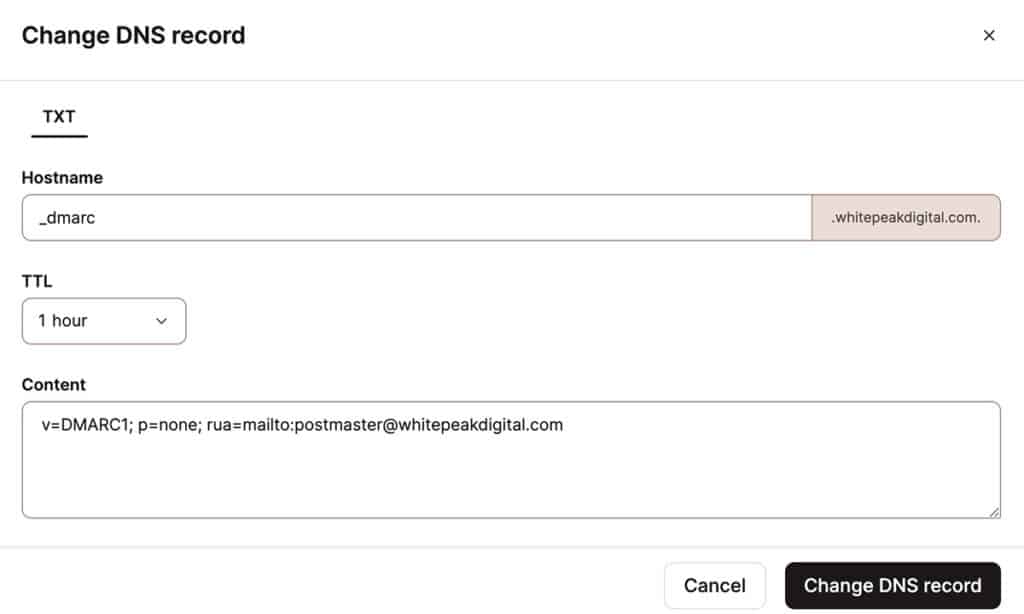
DMARC: Start with a relaxed policy to collect data without impacting delivery. A record using the ‘none’ policy (used for monitoring) instead of ‘quarantine’ (spam/junk folder) or ‘reject’ (blocked entirely) is advised to begin with. Our guide on how to add a DMARC record to your DNS covers this in detail.
Monitoring: Review the automated reports that are sent to the email address included in your DMARC record over the next 1-2 weeks. Identify any sources of failing SPF or DKIM and fix any issues before moving forward.
Enforcement: Once all legitimate traffic passes, update your DMARC record to ‘quarantine’ or ideally ‘reject’. DMARC must be configured with one of these policies for BIMI and blue check eligibility.
Step 2: Prepare Your Brand Logo for BIMI
Trademark status: The logo must be a registered word or device mark. If your logo is unregistered, start the trademark process now since this can take 6-12 months to finalise. BIMI requires a trademarked logo to display the verification checkmark in email inboxes.
Logo format: Your logo must be converted to SVG format according to BIMI specifications, specifically ‘SVG Tiny PS’. Requirements include a square aspect ratio, no scripts or animations, no external references and explicit width and height attributes (minimum 96×96 pixels). Keep the file under 32 KB and host it over HTTPS on your web server.
Brand consistency: The verified logo used in BIMI should match what appears on your website, social media, marketing collateral and trademark. A mismatch between your registered logo and the SVG file can cause certificate authorities to reject your application.
Internal ownership: Assign a single person, such as a marketing manager or digital lead, to manage the SVG file, VMC certificate and renewal schedule. Treat these assets with the same care as your SSL certificate.
Step 3: Purchase a Verified Mark Certificate (VMC)
A Verified Mark Certificate must be applied for through an authorised digital certificate authority.
Reputable providers include DigiCert or GlobalSign which both explicitly support Gmail’s BIMI implementation.
The verification process typically involves submitting your trademark registration documents, organisation identity proof and domain control verification.
Human review by the certificate authority can take anywhere from a few days to several weeks depending on complexity.
A VMC is issued to a specific domain (or set of domains) and is tied to one registered logo. If you rebrand or change your logo later, you will need to reapply.
BIMI requires a VMC for verification, so there is no way around this paid step if you’d like to unlock the blue checkmark.
The cost of a VMC typically ranges from $1,000 to $1,500 AUD per year using one of the providers mentioned above, with discounts typically available in multi-year packages.
After approval, the provider issues a PEM certificate file that you will need to upload and host in a server that is publicly accessible via a HTTPS URL (e.g., uploaded directly to your website server folder would work fine).
Monitor the certificate expiry date just as you would an SSL certificate.

Step 4: Create & Publish Your BIMI Record
A BIMI DNS record must be published that points to your new logo SVG file and VMC file.
To implement BIMI, add a new TXT record to your DNS manager with the following settings:
- Name (or Host): default._bimi.yourdomain.com
- Content (or Value): v=BIMI1; l=https://yourdomain.com/logo.svg; a=https://yourdomain.com/vmc.pem;
- TTL: 3600
BIMI Tag Breakdown:
- v=BIMI1: Declares the BIMI protocol version (must come first).
- l=: Links to your hosted SVG logo file over HTTPS.
- a=: Links to your VMC .pem file over HTTPS.
Reminder: Always separate each tag in your ‘Content’ value with a semicolon.
If you’d like to see a live example of a BIMI record, you can view White Peak Digital’s DNS record via this free online BIMI Inspector here.
After publishing your BIMI record, use the same online BIMI Inspector above to validate it was done correctly.
Then, wait 24-72 hours before sending a test email to a personal Gmail account to test the results. Be aware that DNS propagation and Google’s caching can mean changes take several days to appear.
Step 5: What to Expect Once Your Checkmark Is Live
Once everything is in place, Gmail users will see your brand logo as the sender avatar.
Hovering over the sender name reveals a tooltip confirming the sender is verified, with the blue checkmark icon displayed.
The blue check may not appear for every message immediately due to caching, different Gmail app versions or Google’s reindexing schedule. This is normal and typically resolves within a few days.
Apple Mail and Yahoo often honour BIMI logos and sometimes display their own visual indicators.
However, Microsoft’s Outlook and Exchange currently ignore BIMI entirely and do not show blue checkmarks or brand logos, regardless of your setup unfortunately.
To measure impact, track changes in open rates, click-through rates and spam reports before and after implementation.

Troubleshooting a Missing Verified Checkmark in Gmail
- No logo or blue check showing: Verify that your DMARC policy is actually set to ‘quarantine’ or ‘reject’ with pct=100 and that domain alignment is correct.
- Mixed sending domains: If some tools send from subdomains or third-party domains, those need their own SPF and DKIM setups. The verified blue checkmark will not work without these records applied.
- Incorrect SVG or HTTPS URL: The SVG file linked within the ‘l=’ parameter of your BIMI record must use a publicly accessible URL with HTTPS to be valid. Broken HTTPS or non-compliant SVG files will silently fail.
- Expired or invalid VMC: If the VMC expires, is revoked or does not match the trademark or domain, Gmail will stop showing the logo and blue check until the certificate is renewed.
- Gmail caching delays: Changes to DNS, DMARC or BIMI records can take days to propagate through Google services. Do not panic if the checkmark does not appear within hours.
How Gmail’s Checkmark Compares to Social Media Checkmarks
On social media platforms like Instagram, Facebook and X (formerly Twitter), blue checkmarks serve different purposes.
Some indicate public figures or notable accounts, while others are tied to paid subscription models. These online platforms mix identity, notability and sometimes payment into a single badge.
Gmail’s blue checkmark is entirely different and relies on technical email security systems: SPF, DKIM, DMARC, BIMI and a VMC.
The verification process is mechanical and standards-based and a verified account in Gmail simply means the domain owner has implemented strict message identification and authentication protocols.
For brand strategy, treat Gmail’s blue checkmark as part of your email security and brand presence strategy, while social media checkmarks belong to your reputation and community strategy.
Both enhance brand visibility, but through fundamentally different mechanisms.

Frequently Asked Questions
Can I get a Gmail blue checkmark on a free @gmail.com address?
No. The Gmail blue checkmark is designed for domains controlled by organisations using DMARC and BIMI. It does not apply to personal @gmail.com inboxes.
If you are a sole trader relying on @gmail.com, consider moving to a custom domain with Google Workspace to become eligible.
How long does it usually take to get a Gmail blue checkmark?
Realistic timelines vary. Stabilising SPF, DKIM and DMARC typically takes several weeks of monitoring. If you already have a registered trademark, VMC issuance can take days to weeks. Gmail then needs a few days to recognise BIMI changes.
Businesses with existing trademarks and clean authentication may see the blue check in roughly two to four weeks. Those starting from scratch, including trademark registration, should plan for several months.
Is a Verified Mark Certificate (VMC) strictly required for Gmail’s blue verified checkmark?
Yes, for the full experience of brand logo plus blue checkmark in Gmail, a valid VMC is currently required. A newer option called the Common Mark Certificate (CMC) allows logo display without a trademark, but the verified checkmark will not appear with a CMC.
Will my blue checkmark show up in Microsoft Outlook or Exchange?
No. Microsoft does not support BIMI logos or verification badges in Outlook desktop, Outlook.com or Exchange Online. Even with perfect BIMI setup and a VMC, recipients on Microsoft mail clients will not see the verified checkmark.
They still benefit from the underlying SPF, DKIM and DMARC email security, just not the visual icon.
Does a blue checkmark guarantee my emails won’t go to spam?
The blue checkmark does not guarantee inbox placement or prevent spam classification. While strong authentication and a blue check significantly improve trust and can help deliverability, they do not override all spam filters.
You still need to maintain list hygiene, consent-based marketing, relevant content and sensible sending volumes. The blue checkmark is one layer in a broader email ecosystem strategy, not a silver bullet that will stop spam filtering entirely.