Many businesses are stuck with an outdated static websites that requires a developer for the smallest changes or text updates.
This setup restricts marketing teams and prevents them from implementing website changes quickly.
If you are frustrated by this bottleneck then finding a practical solution is essential for your growth.
You do not need to invest in a completely new custom design. Learning how to rebuild static website on WordPress is a cost effective alternative.
This method lets you keep your current design while upgrading to a modern backend architecture.
This article will show you exactly how to move your static HTML site or old website to a flexible WordPress content management system and visual page builder.
Why Choose A WordPress Page Builder?
A traditional static site serves coded files directly from the server and updating the site typically requires manually editing every single page in a text editor.
One small typo in your navigation menu means fixing dozens of files using this manual method.
Moving to a new, up-to-date WordPress site changes everything and using a page builder such as Elementor adds a beginner friendly method to manage your website from the WordPress dashboard.
You can swap images or publish a new landing page without touching a single line of code.
This approach gives you the flexibility of dynamic features while preserving your site’s design and not wasting your money on a visual overhaul when it’s not required.
This backend WordPress rebuild is an excellent choice for website owners who need a better way to manage existing pages without relying heavily on a website developer.

Start by Auditing Your Current Website
Planning is the most critical part of your migration process.
Before you install WordPress you must create a detailed inventory of your whole site. Start by crawling your domain using a tool like Screaming Frog to export every active URL.
This audit helps you track every HTML file and image directory by creating a spreadsheet that maps all of your old URLs. You can then turn this into a 301 redirect plan by adding corresponding new URLs alongside any pages you intend to replace or delete.
This is the perfect time to identify outdated content that you might want to prune before the rebuild begins.
Backup Your Existing Website Files
You should always backup your current site before starting to rebuild.
Download your website’s main directory using your hosting file manager. The crucial files should include are:
- All HTML files
- Global CSS files
- Downloadable assets
- Image directories
Save a zipped file with all of these in multiple safe locations to avoid data loss.
Having a backup ensures you can easily reference your old layout and fonts during the rebuild and after the migration. It also provides peace of mind if anything unexpected happens to your live environment.

Set up a Staging Environment
Never rebuild your website on your live domain where customers might see unfinished pages.
The best approach is to set up a second website installation on your hosting called a staging environment. Most website hosting providers offer free, temporary staging or development environments within their plans.
Recommendation: If you’re looking for new WordPress hosting, check out our WordPress hosting comparison guide.
Ensure your staging environment is using the latest stable PHP version and that it is password protected at the host-level with a password to prevent unauthorised access or indexing on Google.
Once your staging environment is set up and password protected you are free to experiment and start rebuilding your website on WordPress.
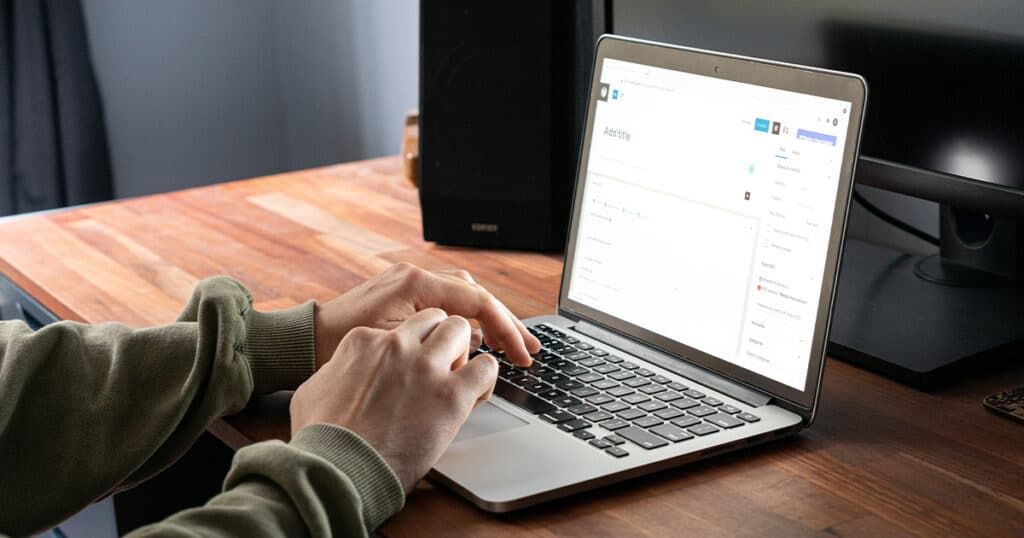
Select Your WordPress Theme & Page Builder
Choosing the right foundation is vital for performance during WordPress migrations.
Start with a lightweight WordPress theme like Hello Elementor or GeneratePress. These themes provide a clean canvas and reduce messy code often found in bloated pre-made WordPress themes.
A lightweight theme eliminates the need to build a custom WordPress theme from scratch.
This saves time and reduces costs while giving your team an intuitive WordPress editor and canvas to build on with a visual page builder like Elementor.
Picking a well known theme also helps you avoid being stuck with an obscure theme that receives no future updates or support.
For a WordPress visual builder, the industry leader is Elementor page builder by a large margin and is our teams go-to recommendation.
They offer a free plugin that will get you started via the WordPress plugin directory along with a paid version that will give you access to more advanced features and widgets.
Map Out Your Website URLs
Your old website pages likely require some updates, consolidation and refinement by the time you’ve decided to rebuild so this is the perfect time to map our your new sitemap.
When you move to a content management system like WordPress, your URLs can change to cleaner paths that are better for your users.
Careful 301 redirect mapping protects your SEO structure and ensures returning visitors do not hit dead ends.
Using the audit spreadsheet from earlier, put all of your existing website URLs in one column and then map each to a URL in your new website’s sitemap. Some pages and their URLs might not change, this is perfectly fine.
Prioritise pages that receive the most traffic or hold valuable external links. Clear URL mapping is the foundation of a successful launch and prevents broken links down the track.
Start With Your Global Layout & Styling
Do not start building your content until your global styles are set.
Open your Elementor page builder settings and define your primary fonts and brand colours. You can find the exact hex codes by opening your old website’s CSS files in a code editor.
Next, use the page builder tools to design a single global header and footer template that will be used across your entire website.
Once published these global WordPress elements will automatically apply to every new page. This ensures complete visual consistency across your entire WordPress installation.

Migrate Content Page By Page
With your global layout established you can begin rebuilding individual pages.
Create a new WordPress page and assign the correct title before using the visual page builder to recreate your webpage one section at a time.
Having your existing, live website open in one tab and the staging environment you’re working on in another will make it easy to compare sections as you go.
Copy the text and visual content from your old website and paste it into the new text widgets.
Avoid copy pasting inline styling or code as it will conflict with your new WordPress files. Upload all your old assets into the WordPress media library and organise them neatly.
Using a WordPress page builder to rebuild your outdated or static website without a frontend redesign is the most cost-effective way to take control of your website.
Configure Dynamic WordPress Features
An old or static website often relies on hardcoded solutions that will not work smoothly in your new WordPress environment.
You need to replace these with lightweight alternatives, many of which are included in a page builder like Elementor by default:
- Contact forms
- Google map embeds
- Image gallery widgets
This is also a great time to ensure your website is also completely secure by installing a reliable backup and security plugin.
Keep your website setup lean and only use additional plugins that provide genuine value to avoid slowing down your website load speed.
Setup On-Site SEO & Redirects
Moving to a new platform requires careful attention to search engine visibility.
Install a reputable SEO plugin like Yoast SEO or Rank Math SEO to manage SEO elements like page titles and meta descriptions.
Ensure you transfer all your existing metadata over to your new website meticulously to maintain your current SEO rankings.
Before launching, install a redirect plugin and input the two column URL spreadsheet you created earlier. This guarantees that anyone clicking an old link is instantly sent to the correct page on your new site.
Pro Tip: To find out more about SEO migrations, read our guide on how to protect organic SEO traffic while rebuilding your website.

Launch Your New Website
Once you thoroughly test every page on your site, it is time to go live!
Update your hosting or domain settings to point to the new hosting environment and remove any password protection so search engines can access your updated content.
Connect your Google Analytics 4 and Google Search Console accounts immediately to monitor for any crawl or user issues.
Check that all internal links function correctly across the whole site by running another Screaming Frog audit.
Ongoing Website Maintenance
Your team can now log into the WordPress admin dashboard and update content effortlessly.
Training on a visual builder takes only a few hours and minor text updates or new blog posts can be published in minutes.
Remember that WordPress requires ongoing maintenance compared to static HTML sites.
You must keep the WordPress Core software and theme files updated regularly.
Committing to a routine website maintenance schedule keeps your site secure and performing at its best.

Partnering with White Peak Digital
Our web design agency regularly helps Australian businesses transition away from outdated static setups.
We manage the entire rebuild process from the initial audit to the final redirect testing and SEO migration. Our focus is on delivering a fast platform that empowers your marketing team.
Upgrading your website platform does not have to involve a complete redesign.
We can perfectly match your current website while providing all the backend benefits of a modern content management system, with minor user experience and mobile responsiveness improvements at the same time.
Moving away from a hardcoded or static website opens up incredible opportunities for your business growth and internal team.
Frequently Asked Questions
Why should I move from a static website to WordPress?
Static sites require developer assistance for every text or image update. Moving to WordPress gives you a visual editor that lets your team make instant changes without writing code.
Will I lose my search engine rankings during the migration?
Your SEO rankings can be preserved by carefully mapping your old URLs and implementing redirects. This ensures search engines and visitors can still find your content seamlessly.
Do I need to redesign my website completely?
No you do not. A visual page builder allows you to perfectly recreate your existing layout. You get all the modern backend features while keeping your visual identity exactly the same.
How long does the website migration process usually take?
A small business site can often be migrated in a couple of weeks. Larger sites take more time for careful auditing and page-by-page reconstruction to ensure absolute accuracy.
Is a WordPress site fast enough for my business?
Static files load very quickly but a well configured WordPress site is just as fast. By using a lightweight theme and proper caching you will experience excellent page speeds.
How do I manage my old PDF files and downloads?
You can upload all your existing documents into the WordPress media library. You then update the links on your new pages so visitors can still download your resources without issue.